Ask your AI assistant about your jobs.
Staff augmentation with AI made simple!
Connect your AI assistant to JobMaster360. Ask about your schedule, jobs, customers, invoices and booking requests. When you want something booked, it drafts a request, you approve it, and it lands in JobMaster360 as a New request for your team to review.
- Off until your admin turns it on
- You approve every request
- No payments
- You set key expiry · revoke anytime
The connector is live now. Create a key in JobMaster360 under Configuration > Integrations > Connected apps & keys, then follow the setup guide. Questions? Call or email support.
See how to turn on the connector, ask about your jobs, and approve a request, all in JobMaster360.
A quick look at asking your AI assistant about your jobs.
Watch the full walkthrough (3–4 min)
What you can ask
Plain-language questions, answered from your own JobMaster360 data.
Example data
- What's on the schedule today?
- What's Carlos doing tomorrow?
- When is the technician due at the Lee job?
- Do we have any new booking requests?
- Which invoices are overdue?
- Which completed jobs are still unpaid?
- What openings do we have for a furnace tune-up next week?
- Look up the customer with the phone number ending in 0142.
- Create a visit request for the Smith residence Tuesday afternoon. I'll approve it.
- Request an estimate for a new AC install at 12 Oak St.
- Is my JobMaster360 connection working?
"Still unpaid" uses the invoice status in JobMaster360.
Example data Accounting example
- Ask about this week's completed jobs alongside your invoices synced with QuickBooks or Xero.
Example data Illustrative answer
- 8–10 AM · Furnace tune-up · Carlos
- 11 AM–1 PM · Water heater inspection · Dana
- 2–4 PM · AC check · Carlos
Example data. Names, times and counts are illustrative, not real records.
https://mcp.jobmaster360.com/mcp
How it works
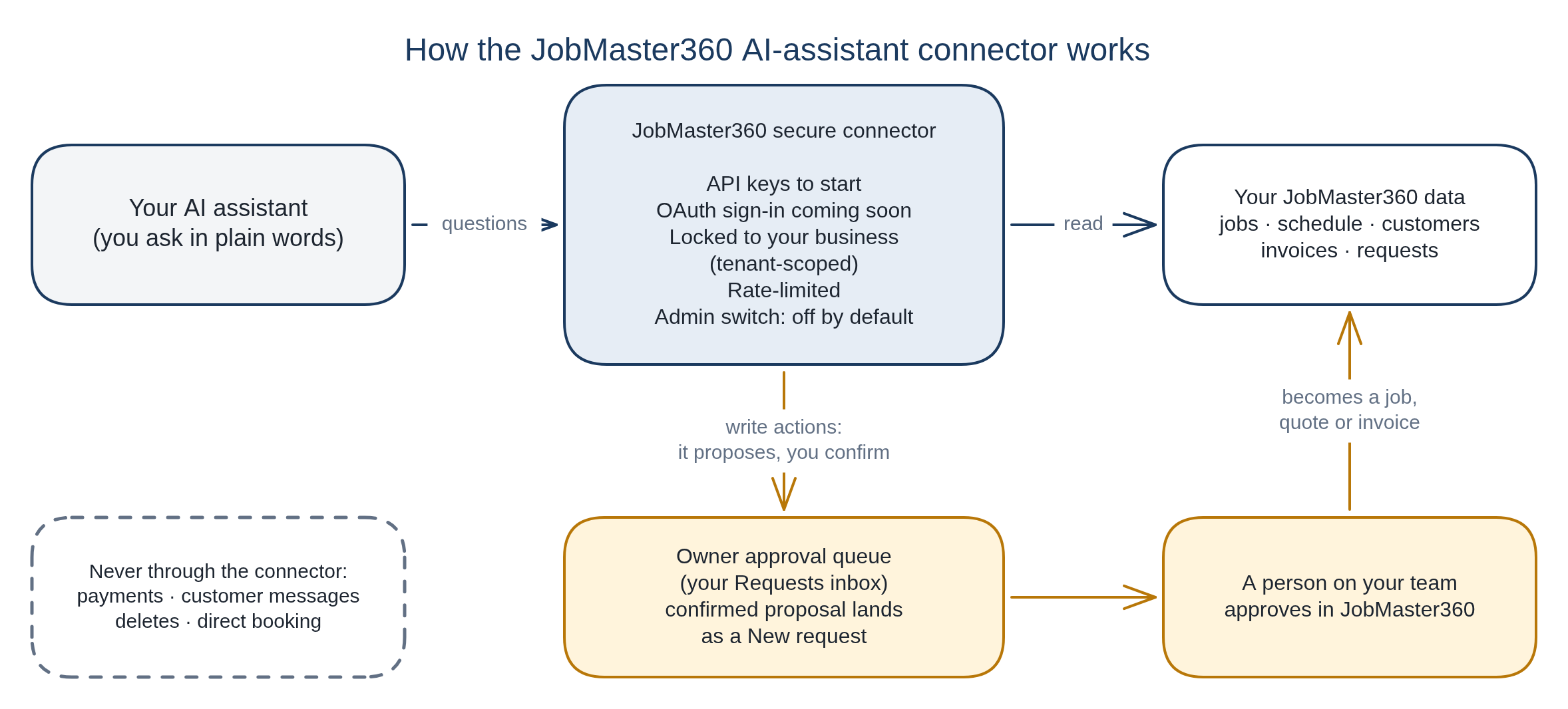
Your assistant reads through a secure connector that's locked to your business. Anything that creates work goes to your team for approval.
flowchart TD
  A("Your AI assistant
(you ask in plain words)") -->|questions| B("JobMaster360 secure connector
API keys to start · OAuth sign-in coming soon
Locked to your business (tenant-scoped)
Rate-limited · Admin switch off by default")
  B -->|read| C("Your JobMaster360 data
jobs · schedule · customers · invoices · requests")
  B -->|"write actions: it proposes, you confirm"| D("Owner approval queue
(your Requests inbox)
confirmed proposal lands as a New request")
  D --> E("A person on your team
approves in JobMaster360")
  E -->|becomes a job, quote or invoice| C
  N("Never through the connector:
payments · customer messages · deletes · direct booking")
  C ~~~ N
  classDef assistant fill:#f3f5f7,stroke:#1b3a5f,stroke-width:2px,color:#1d2530
  classDef conn fill:#e6edf5,stroke:#1b3a5f,stroke-width:2px,color:#1d2530
  classDef data fill:#ffffff,stroke:#1b3a5f,stroke-width:2px,color:#1d2530
  classDef approve fill:#fff4dc,stroke:#b87708,stroke-width:2px,color:#1d2530
  classDef note fill:#ffffff,stroke:#627084,stroke-width:1.5px,stroke-dasharray:6 4,color:#334155
  class A assistant
  class B conn
  class C data
  class D,E approve
  class N note
How you'll turn it on
A business admin controls the connector. It's off by default, and nothing reaches an assistant until an admin turns it on.
flowchart TD
  S1("1. Admin turns on AI assistant connections
(off by default)") --> S2("2. Create a connector key and pick its expiry
(or sign in with JobMaster360, coming soon)")
  S2 --> S3("3. Add the connector in your AI assistant")
  S3 --> S4("4. Ask about your jobs")
  classDef step fill:#e6edf5,stroke:#1b3a5f,stroke-width:2px,color:#1d2530
  classDef done fill:#fff4dc,stroke:#b87708,stroke-width:2px,color:#1d2530
  class S1,S2,S3 step
  class S4 done


Turn on AI assistant connections (admin)
In your JobMaster360 admin settings, turn on AI assistant connections. It stays off until you turn it on.
Allow connector keys (admin)
In the same place, allow connector keys. This is off by default too.
Create a connector key (admin)
Create a key, give it a clear name (for example, "Front desk assistant"), and pick a type:
- Read-only: your assistant can look things up but can't create anything. Start here.
- Read-write: everything read-only can do, plus drafting visit and estimate requests for your approval. Read-write keys can also draft an invoice request that your office reviews and converts. The invoice-draft permission is off by default, and an admin turns it on. Requests land as New requests, and your team turns them into jobs, quotes or invoices. Nothing more.
Pick when the key expires
Choose 7, 30, 60 or 90 days, or pick a custom date. You can also choose no expiry, but JobMaster360 shows a warning, because that key keeps working until someone revokes it. JobMaster360 emails a reminder before a key expires.
Copy the key once
JobMaster360 shows the key one time. Paste it straight into your assistant's connector or credential field. Never paste it into the chat. If you lose it, rotate it and use the new one.
Keep an eye on your keys
Each key shows its expiry date and when it was last used, so you can spot keys nobody needs anymore.
Rotate or revoke anytime
Rotating a key swaps in a new one for the same connection. The old key keeps working for a short overlap window, so you have time to paste the new one into your assistant. Revoking a key stops it immediately. Turning off AI assistant connections blocks every assistant for your business at once.
Tip: use one key per person or purpose. Then, if someone leaves or a key gets shared by mistake, you revoke just that one.
Coming soon: sign in with your JobMaster360 account. Signing in to JobMaster360 from your assistant (OAuth) is on the way. You'll pick the business, review what the assistant can access, and approve. Each person then connects with their own login and permissions.
Set up your assistant
Connect JobMaster360 to your AI assistant today. Chat apps are coming soon.
Chat app keys will be read-only, and contact details stay masked.
Need help setting it up? Call or email support: (571) 469-6556 · jobmaster360@mustautomate.ai
You stay in control
15 seconds: your assistant drafts a visit request, you confirm it, and it lands in JobMaster360 as a New request for your team to review.
Your admin decides
The connector is off by default. A business admin has to turn on AI assistant connections, and connector keys need a second switch. Admins can turn everything off in one step.
A person approves every request
Your assistant can't book or bill anything on its own. With a read-write key it can draft a visit or estimate request, and read-write keys can also draft an invoice request that your office reviews and converts. The invoice-draft permission is off by default until an admin turns it on, and the assistant can't set prices. Nothing happens until you confirm, and unconfirmed proposals expire after a few minutes. Then it lands in JobMaster360 as a New request, and your team decides whether it becomes a job, quote or invoice before anything is scheduled, invoiced or sent to a customer.
No payments
The connector can't take payments, issue refunds, send payment links or see card or bank details. Invoice lookups show status and balances. Invoice requests go to your team, and the connector never sends an invoice or collects money.
Keys you control
Every key belongs to one business. You choose its expiry (choosing no expiry comes with a warning), see when it was last used, and get a reminder email before it runs out. Revoke it anytime. Keys are shown once, stored hashed, and read-only keys can't create anything.
Your data stays in your business
Each connection is locked to one JobMaster360 business account. It can't reach another company's records.
What your assistant can see
- Customers: name, service street and city, and a masked phone number (like •••-•••-1234 Example data). No full contact details, gate codes or payment methods.
- Jobs: status, scheduled visit window, service type, technician's first name
- Schedule: up to 7 days at a time
- Availability: suggested open windows (not held)
- Invoices: number, dates, status, total, amount paid, balance due
- Booking requests: your inbox of new requests
- Long notes come back as short summaries. Lists are capped (up to 25 at a time). No bulk exports.
What your assistant can't do
- Book, reschedule or cancel jobs directly
- Assign or reassign technicians
- Edit or delete customers, jobs, estimates or invoices
- Text, email or notify your customers
- Send estimates or invoices
- Convert a request into an invoice (your office does that in JobMaster360)
- Take payments, refund, or create payment links
- Show live technician GPS (arrival times come from the scheduled window)
- Export your customer list in bulk
- Change your settings, users or roles
Whatever your assistant receives is also covered by that assistant's own terms and privacy settings. Review them before you connect.
Short answers, by design
AI assistants have a limit on how much text they can take in at once, and many plans meter usage. The JobMaster360 connector is built to use as little of that as it can.
- A small set of tools10 in total, each with a short description, so your assistant has less to read before it starts.
- Compact answersThe fields your question needs, with empty values left out.
- Lists in pages10 results at a time by default, up to 25, instead of everything at once.
- Changes, not repeatsWhen your assistant asks again, it can get just what changed, or a quick "nothing new."
- Summaries, not transcriptsLong notes come back as short summaries that point to the original record.
- Why it mattersYour assistant keeps more room for the actual conversation and can go longer before hitting usage limits.
FAQ
What is this, in plain terms?
It's a secure connection between JobMaster360 and your AI assistant. The assistant can look up your jobs, schedule, customers, invoices and booking requests, and draft requests for you to approve. Technically it's an MCP server, which is the open standard many AI assistants use to connect to other apps.
Is it on for my account right now?
The connector is live now. It's off by default, and a business admin turns on AI assistant connections in JobMaster360.
Can the assistant book or change jobs by itself?
No. With a read-write key it can draft a visit or estimate request, and, if an admin has turned on the invoice-draft permission, an invoice request that your office reviews and converts. You confirm it, and it lands in JobMaster360 as a New request. Your team decides what happens next inside JobMaster360.
Can it take payments or send invoices?
No. There are no payment features in the connector, and it can't send invoices. It can look up invoice status and balances. Read-write keys can also draft an invoice request that your office reviews and converts. The invoice-draft permission is off by default, and an admin turns it on. The assistant can't set prices.
Will it text or email my customers?
No. The connector can't send anything to your customers.
What's the difference between a read-only and a read-write key?
A read-only key can look things up. A read-write key can also draft visit and estimate requests for your approval, plus invoice requests that your office reviews and converts if an admin turns on the invoice-draft permission (off by default). They land as New requests for your team. Neither one can book, cancel, edit, delete, send invoices or take payments. In chat apps, use read-only keys.
Where do I paste my key?
Paste it into your assistant's connector setup or credential field. Never paste it into the chat. JobMaster360 shows each key once, so if you lose it, rotate it.
Someone left, or a key got shared by mistake. What do I do?
Revoke that key in JobMaster360 and it stops working immediately. Then create a new one for whoever still needs it. Keys also stop on the expiry date you set, unless you chose no expiry.
How long does a connector key last?
You choose when you create it: 7, 30, 60 or 90 days, or a custom date. You can choose no expiry, but JobMaster360 shows a warning. You'll get a reminder email before a key expires, and you can see each key's expiry date and last-used time. When you rotate a key, the old one keeps working for a short overlap window so you can swap in the new one.
When can I connect my AI assistant?
Now, for AI assistants: create a key and follow the setup guide. Chat apps are coming soon; chat app keys will be read-only, and contact details stay masked.
Do my technicians get their own access?
With keys, an admin creates a key for each person or purpose. When sign-in launches (coming soon), each person connects with their own JobMaster360 login and sees what their role allows.
Why are the answers so short?
On purpose. Compact answers use less of your assistant's limits, so you get more conversation out of each session.
Which plans include the connector?
Call or email us and we'll check your account.
Get notified
The connector is live now. Start with the setup guide. We're happy to answer questions and walk you through setup.
Set it up